In the previous part we brought up an electron window and displayed a webpage, but if we’re just going to display something from the internet then our electron app is going to be rather pointless. In the next few parts we’ll start turning this into a real desktop application.
It’s time to look at the other half of electron: the website that’s actually going to implement our UI. Eventually we’ll build a fully-fledged single-page application. For now, let’s just start with some simple HTML and make it more complicated as we go:
<html>
  <head>
    <title>Electron from scratch</title>
  </head>
  <body style="width:100%;height:100%;margin:0">
    <div id="app" style="width:100%;height:100%">
      Hello, world!
    </div>
  </body>
</html>
We also need to change our electron code to load the file instead of example.com:
window.loadURL(`file://${__dirname}/../website/index.html`);
Since electron is running from out/electron/index.js, we load index.html relative to that path. We just need to copy our website from src/website/index.html to out/website/index.html. For now we’ll add a quick copy command to our build script in package.json:
"build": "tsc && cp ./src/website/index.html
                    ./out/website/index.html",
And a quick npm run start shows off the new content:
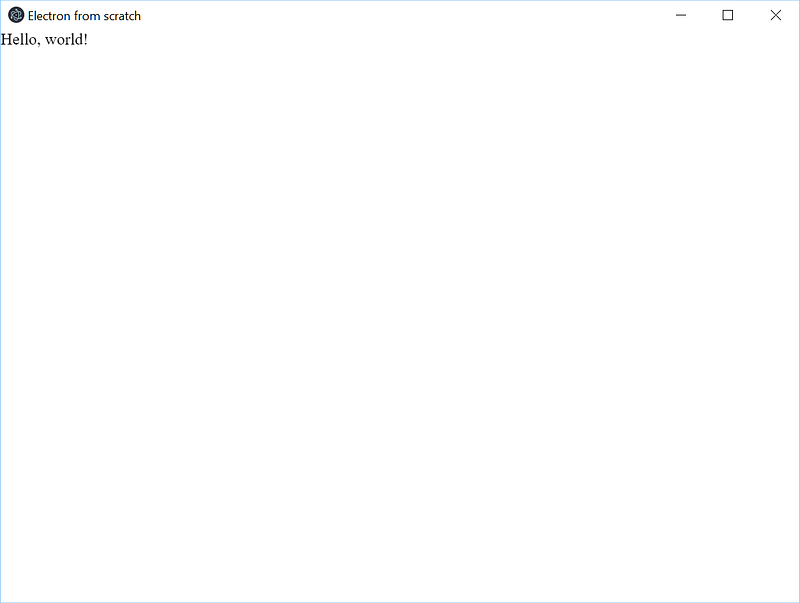
Not very impressive, I’ll admit. Let’s make it a bit more interactive:
<!-- index.html -->
<html>
  <head>
    <title>Electron from scratch</title>
  </head>
  <body style="width:100%;height:100%;margin:0">
    <div id="app" style="width:100%;height:100%">
      Loading...
    </div>
    <script type="text/javascript" src="index.js" />
  </body>
</html>
// index.ts
const app = document.getElementById('app');
if (app) {
  app.innerHTML = 'Hello, world!';
}
Now we’ve got a minimal page skeleton in HTML, and we can start writing typescript to turn it into a real interactive application. Note that we’ve created an index.**ts** file but we reference index.**js** in the html, since our copied html file needs to reference the compiled javascript from the out/ folder.
Building a website with React
For this project we’ll be using React, a javascript library for building rich user interfaces. I’ll try to avoid going into too much detail with React here, since there are plenty of other excellent resources available on the web.
The short version is that React lets us write pure functions which generate an immutable tree of how the application should look at a given point in time, called a virtual DOM. Rather than re-rendering the entire page, React then does the hard work of figuring out how to update the real DOM as efficiently as possible. React also gives us a bunch of tools for splitting our app into independent components and managing complexity, and in general does a pretty good job.
React is very popular right now, but it may be overkill for a lot of more traditional websites. In our case, since the goal is to create a highly-interactive desktop application, we’ll be leaning into React a lot and making full use of the tech available.
There’s a bunch of tweaks we need to make to our build process to get React up and running:
Firstly, JSX is a handy extension to javascript which means we can write out html-like templates for our components. While mixing html and javascript together like this sounds like a bad idea (and often is), it turns out to work quite well in this context. By convention, .js files containing JSX get renamed to .jsx, and .ts files become .tsx. We also need to transform the JSX into actual javascript, so we’ll change the jsx setting in tsconfig.json to 'react' instead of 'preserve'.
Secondly, we need to invoke React to actually get it to update the DOM. We do that with the ReactDOM.render(element, contents) method, where element is the part of the DOM we want to update (ie our getElementById('app') variable) and contents is the JSX we want to replace it with.
We’ll also quickly grab type definitions for react and react-dom. These will give us handy type-checking and code completion features, like we saw earlier with loadUrl in electron:
> npm install --save-dev @types/react @types/react-dom
Finally, we need to pull in the React libraries. For now we’ll just grab them over the CDN, but we’ll be changing that in a moment. Here’s how it all looks:
<!-- index.html -->
<html>
  <head>
    <title>Electron from scratch</title>
  </head>
  <body style="width:100%;height:100%;margin:0">
    <div id="app" style="width:100%;height:100%">
      Loading...
    </div>
    <!--
      For the moment we've just added references to hosted copies of React.
      These will get replaced in a moment.
    -->
    <script crossorigin src="https://unpkg.com/react@16/umd/react.development.js"></script>
    <script crossorigin src="https://unpkg.com/react-dom@16/umd/react-dom.development.js"></script>
    <script type="text/javascript" src="index.js"></script>
  </body>
</html>
// index.tsx
import * as React from 'react';
import * as ReactDOM from 'react-dom';

// We find our app DOM element as before
const app = document.getElementById('app');

// Here's an example of a couple of simple React components
const Emphasis: React.FunctionComponent = props => <em>{props.children}</em>;

// You can see how we can mix html and nested components together
const App = () => (
  <div>
    Hello, <Emphasis>world</Emphasis>
  </div>
);

// Finally, we render our top-level component to the actual DOM.
ReactDOM.render(<App />, app);
// index.js

// Here's what the above code actually gets compiled to.
// I've added some comments to explain each bit.

// This line turns on "strict mode" for javascript.
// It's an older feature which will cause some problematic patterns to fail explicitly.
"use strict";

// We have some boilerplate here where typescript is attempting to define a module system.
// We'll look at this in more detail in the next section, since this doesn't quite work just yet.
var __importStar = (this && this.__importStar) || function (mod) {
    if (mod && mod.__esModule) return mod;
    var result = {};
    if (mod != null) for (var k in mod) if (Object.hasOwnProperty.call(mod, k)) result[k] = mod[k];
    result["default"] = mod;
    return result;
};
Object.defineProperty(exports, "__esModule", { value: true });

// Now our import statements are translated into usages of the module system
const React = __importStar(require("react"));
const ReactDOM = __importStar(require("react-dom"));

// The start of our actual code: this line is copied verbatim
const app = document.getElementById('app');

// We can see here how our JSX is translated into calls to React.createElement
// Also, the type definition on Emphasis is stripped out.
const Emphasis = (props) => React.createElement("em", null, props.children);
const App = () => (React.createElement("div", null,
    "Hello, ",
    React.createElement(Emphasis, null, "world")));

// Finally, the JSX inside our ReactDom call is expanded out and we start the render.
ReactDOM.render(React.createElement(App, null), app);
Bundling javascript files together
We now have a problem: we need to figure out how to ship React along with our app. We’re currently referencing a copy of React from an online CDN, but we don’t really want to be dependent on an online resource for our desktop application to function.
As our app gets more complicated, we’ll also want to split it up into multiple files which reference each other, so we’ll need to figure out how to solve that problem as well.
We’ll use webpack, an all-in-one build tool, to solve these problems. For now we’re going to use it for some fairly basic tasks, but webpack configuration can get notoriously complicated.
The main job webpack will do for us (and the one it’s named after) is to bundle up our module references and package our own code along with React. Remember that module boilerplate that typescript turned our import * as React from "react"; calls into? Now that will actually call into a real module system.
We’ll need a few npm modules to get started:
> npm install --save-dev webpack webpack-cli ts-loader
> npm install --save react react-dom
webpack and webpack-cli provide the build tool. We need ts-loader to integrate with the typescript compiler and make it part of the build process. We’re now pulling react and react-dom through npm instead of a hosted CDN.
Unlike some other build tools, where we define a chain of tasks which source code goes through, everything in webpack is configured in one place. Our very first webpack config looks like this:
'use strict';

// pull in the 'path' module from node
const path = require('path');

// export the configuration as an object
module.exports = {
  // development mode will set some useful defaults in webpack
  mode: 'development',
  // the entry point is the top of the tree of modules.
  // webpack will bundle this file and everything it references.
  entry: './src/website/index.tsx',
  // we specify we want to put the bundled result in the matching out/ folder
  output: {
    filename: 'index.js',
    path: path.resolve(__dirname, 'out/website'),
  },
  module: {
    // rules tell webpack how to handle certain types of files
    rules: [
      // at the moment the only custom handling we have is for typescript files
      // .ts and .tsx files get passed to ts-loader
      {
        test: /\.tsx?$/,
        loader: 'ts-loader',
      },
    ],
  },
  resolve: {
    // specify certain file extensions to get automatically appended to imports
    // ie we can write `import 'index'` instead of `import 'index.ts'`
    extensions: ['.ts', '.tsx', '.js'],
  },
};
We’ll replace the call to tsc in the package.json build script with webpack --config webpack.website.config.js and run it. Our generated index.js now jumps massively in size: it’s too big to show here, but you can see the full thing in this gist. You don’t need to understand every line, but you can sort of see the overall structure and how each library that we depend on has been inlined into a module system. Right at the bottom of the file you can see a string containing our compiled index.tsx.
Note that the above webpack config only builds the website half of the application. Because the electron process runs in node while the website process runs in a browser context, some details like how the module system works will be different between the two, and so we need separate configs for each. Here’s the equivalent electron config:
'use strict';

const path = require('path');

module.exports = {
  mode: 'development',
  entry: './src/electron/index.ts',
  output: {
    filename: 'index.js',
    path: path.resolve(__dirname, 'out/electron')
  },
  module: {
    rules: [{ test: /\.tsx?$/, loader: 'ts-loader' }]
  },
  resolve: {
    extensions: ['.ts', '.tsx', '.js']
  },
  // tell webpack that we're building for electron
  target: 'electron-main',
  node: {
    // tell webpack that we actually want a working __dirname value
    // (ref: https://webpack.js.org/configuration/node/#node-__dirname)
    __dirname: false
  }
};
Most of the content is the same: the main differences are the target: 'electron-main' and node: { __dirname: false } lines. The latter is required to make loading our local index.html work, while the former affects some module loading settings: for example, our electron import in src/electron/index.ts gets turned into a normal node require("electron") call instead of being handled directly by webpack, and electron itself doesn’t get inlined into the bundle.
Currently webpack is only handling our typescript code, but we can also get it to do the index.html copying for us as well. We could just use a simple file copy plugin, but actually we can get webpack to do something a bit more intelligent with html-webpack-plugin. After installing the plugin with npm, we add this to our config:
const HtmlWebpackPlugin = require('html-webpack-plugin');

module.exports = {
  // [...]
  plugins: [
    new HtmlWebpackPlugin({
      template: 'src/website/index.html',
    }),
  ],
}
Now webpack will actually read in our index.html file, automatically insert a script tag which calls the webpack entry point, and then write it to the output folder. This means we don’t have to know about the name of the entrypoint when we write the html, and we don’t need to include an extra copy step in our npm build script.
As a side note, webpack also has a --watch parameter, so our build:watch script carries on working as before.
And after all that effort:

For a moment…

Hello world, indeed.
In the next few parts we’ll look at adding styling, making our application more complex, and interacting with external capabilities to continue turning this into a real desktop application.

Photo by Fractal Hassan